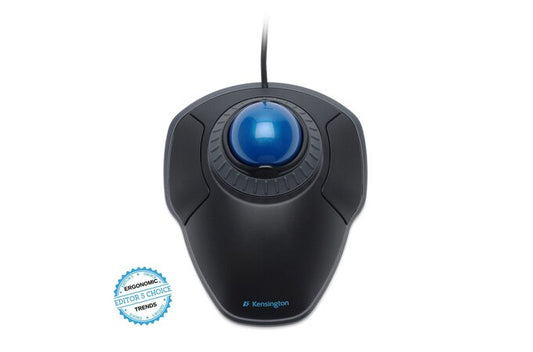
Kensington Orbit mouse Office Ambidextrous USB Type-A Optical
<b>Scroll Ring and Medium Ball</b>\n\nSpin the dial to move up and down web pages or documents with complete ease. The blue 40mm ball has been specially designed with an absolute spherical, hard surface for precise tracking and control\nScroll Ring and Medium Ball\nOptical Tracking Technology\n\nProvides precise cursor movement for superior accuracy so you can get where you want on the screen quickly with less hand movement, improving productivity and efficiency\n\n<b>Detachable Wrist Rest</b>\n\nSoft cushioning cradles the hand and wrist in ergonomic comfort for pain-free productivity during extended periods of activity on the computer\n\n<b>Ambidextrous Design</b>\n\nWorks equally well for both right-handed and left-handed users to get the most out of their trackball\n\n<b>Plug & Play Installation</b>\n\nQuickly get clicking and scrolling with fast, simple installation through the reliable wired USB connection, plus it doesn’t need batteries\n\n<b>TrackballWorks™ Customisation</b>\n\nFree downloadable software provides an even more personalized experience, giving you the ability to assign a wide variety of program functions to each of the 2 buttons, as well as adjusting cursor and scrolling speeds\n
Key Features
Award-winning Scroll Ring lets you scan up and down pages with ease|Medium 40mm ball is designed as a perfect sphere to provide exceptional precision|Optical tracking technology for superior cursor control and accuracy|Detachable wrist rest supports hand and wrist for ergonomic comfort|Ambidextrous design works equally well for both right-handed and left-handed users|Plug & Play installation via wired USB connection|PC and Mac® compatible|TrackballWorks™ software lets you customize the 2 buttons, adjust cursor and scrolling speed
Product Details
Brand: Kensington
Model: Orbit
Category: Mice
SKU: 1276924
Authorised reseller buy with confidence
Estimate delivery times: 3-5 days (Australia Wide).
Thank you for registering! We will notify you by email when it is back in stock.
PayPal Pay Later Messaging
Step 1: Choose message placement
Click the button below and then hover over your page to select a placement.
Step 2: Paste and save
You have copied the placement for the Product Page.
Go back to the App Embeds section, and in the Paypal Advanced Settings, paste the copied value into the
Product Page field and click the 'Save' button in the top right corner.